How Creci works
This page explains what each screen does, grouped by what you are trying to get done rather than by the order of the menu. Inside the panel, the «?» button explains in a few lines whichever screen you have in front of you at that moment.
1 · The first three days
To start using it for real you need three things, in this order:
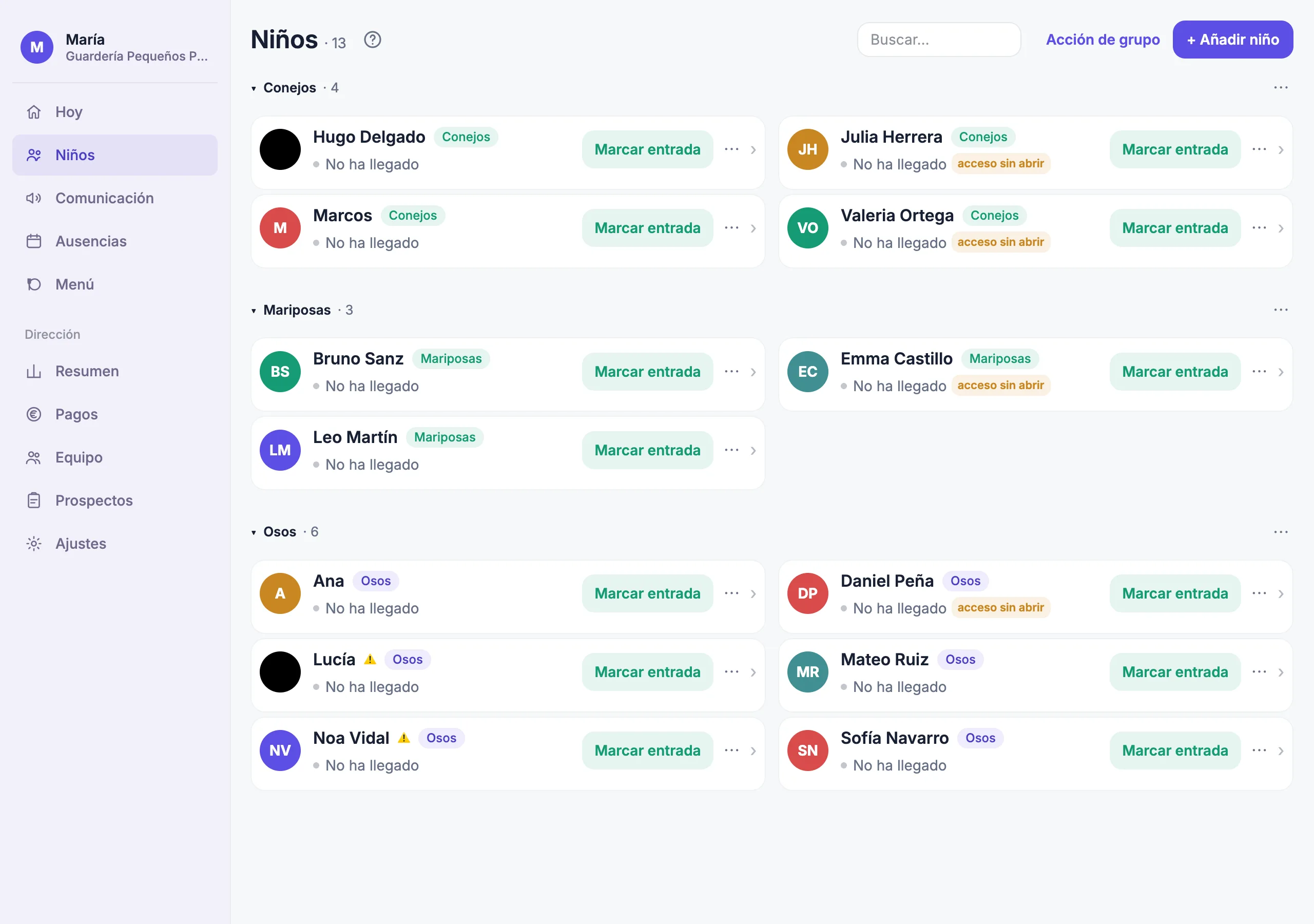
- Add the children in Children → + Add child. If you already have the list in Excel, there is a CSV importer (in Children and in Settings) that saves you an afternoon.
- Invite your team in Team → + Invite. Each teacher gets an email with their own link. You can assign them a group: they will then only see those children. Until they sign in, Team shows them as «Invitation pending»; open their row to send the invitation again.
- Invite the families from each child's record, or all at once when importing the CSV by ticking «Send the families their portal access now» (it starts unticked: leave it and nothing is sent, so you can send it later from each record). The first time they go in, they accept the portal's terms of use: photos stay within the family, access is personal, urgent things go by phone. They sign in with the email on the record and a code sent to that address, with no password: in the Creci app (Google Play or the App Store), which the invitation offers first because that's how notifications reach them, or in the browser.
Everything else — menu, payments, permissions — can be filled in as you go. None of it blocks daily use.
2 · Day to day
Today is the screen you work in: who has arrived, who is missing and who has already gone home. Check-in and check-out are the «Check in» and «Check out» buttons on the child's card, and the daily report — meals, nap, diaper, mood and a note — shows up in the family's portal straight away. Their phone only gets an immediate notification for what needs attention (ate little or nothing, has been crying); the rest arrives as a single «The day of…» summary when the child is picked up.
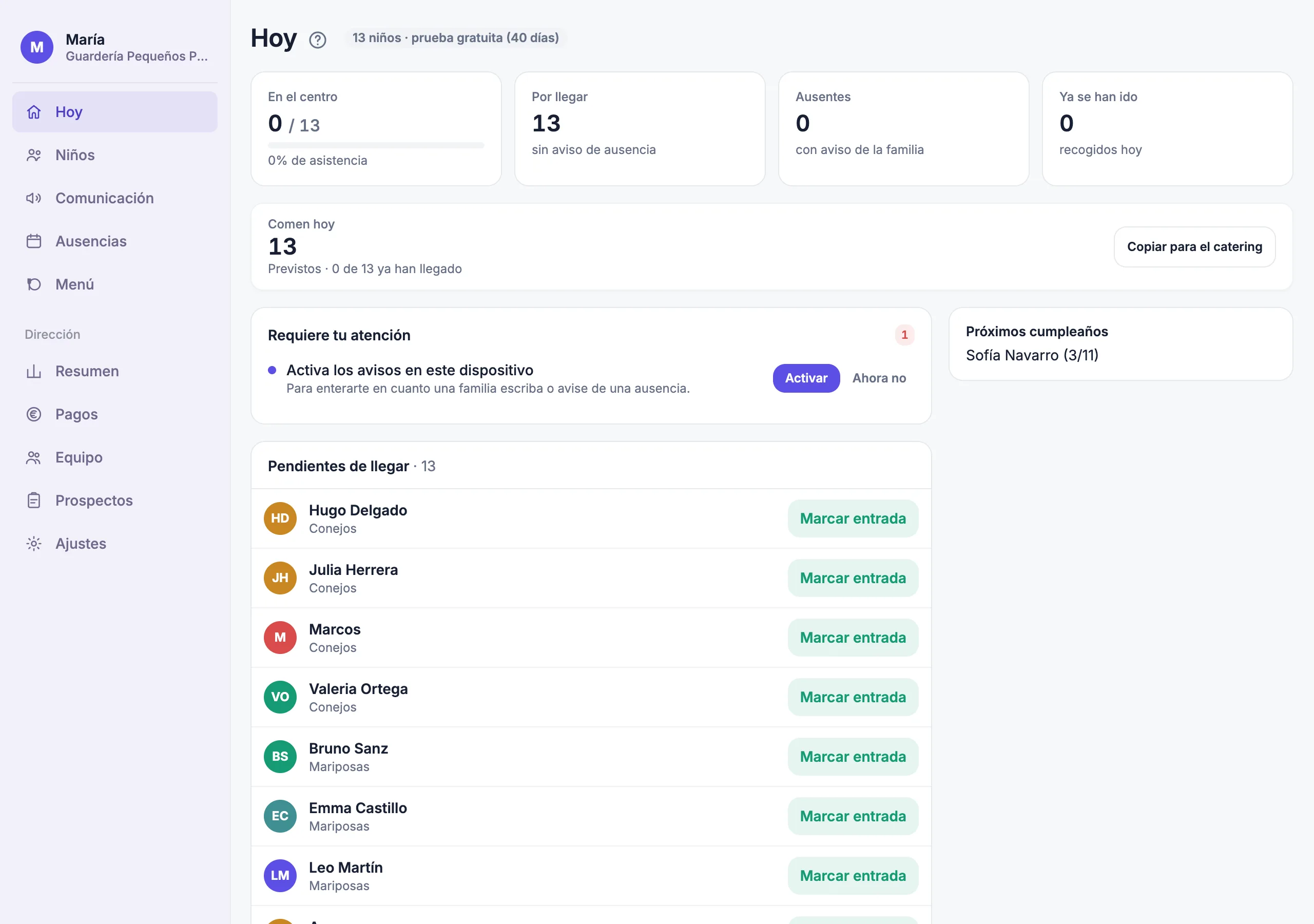
- Needs your attention: at the very top, whatever someone is waiting on you for — today's medication not yet given, from half an hour before the time the family set (with «Log dose» on the same row; before that, the record says «due at 12:30»), unread messages from families, absences to approve, reports that should be done by now (lunch after lunchtime, nap after nap time, only if the centre uses them and the child is in at that time) and, for management, overdue payments, documents about to expire, interested families to call back, from Thursday to Sunday a next week with no menu (if you plan the menu day by day) and, in December and January, the modelo 233 until you file it. Each row takes you where it gets solved; if nothing is pending, the block isn't shown.
- Live ratio: if staff clock in, Creci compares children and teachers against the legal maximum of the Comunitat Valenciana and alerts the director as soon as a room goes over it. If a teacher leaves and comes back (split shift, lunch out), she clocks in again; «Clock out» asks first, and the last tap can be undone for 10 minutes.
- Absences: families report them from their portal. On that day the child shows as «Absent today · reason» on Today (Absent list, «Pending» if not yet approved), in Children and on their record, and the absence stays in the Absences tab until its last day. Nobody has to phone home to ask. Approving is just the centre's acknowledgement — the family isn't notified — and if you get it wrong, «Undo» in the message at the bottom puts it back to pending. If the family tells you by phone or at the door, record it yourselves: «Not coming today» on the child's record or in its «⋯», or «+ Record an absence» in the Absences tab. It is approved straight away, no longer counts in «Eating today», and the family sees it in their portal as «Added by the centre»; «Remove» deletes it. Past ones, from the last 12 months, are under «Show past absences» at the bottom of the tab; filtering by a past day opens them on their own.
- Check-in from Today: once tapped, the child stays in place for a few seconds with «✓ In» and Undo, in case it was the wrong one. Teachers see their whole group as cards, with a filter on top (Yet to arrive, In the centre, Absent, Already left) and «Check out» on the card of whoever is in; beside it, how much of the daily report is already filled in. If a child is an hour past their usual arrival time with no notice, their card says so in red: Late; past their pickup time (or 18:00 without one), Didn't come in — the same in Children, where the director checks children in. If another device already checked the child in, tapping «Check in» again doesn't clear it: the screen catches up and says what time it was; to remove it, Undo or «✕ Delete» under Correct time. Open screens catch up on their own every two minutes.
- Centres without check-in and check-out: if attendance isn't recorded (Settings), Today shows teachers Today's report of each child in their group — «Running late», «Not started», «Missing: nap…» or «✓ Complete», late ones first — with a button that opens the report.
- Pick-ups: if someone else is collecting the child today, a pass is left; if in doubt, you can ask the family to confirm before handing the child over.
- The daily report: it saves itself on every tap — there is no Save button; at the bottom it says «Saved · 15:42» — and «Done» closes it. Pee and Poop are two cards: tapping a card adds a change and ↶ takes the last one back; above them, the time of the last change. Under Lunch, today's dish for that child (their own menu, if they eat a different one) and a 🔺 warning if it might contain something they are allergic to. For under-twos, Bottle (time and ml), and «+ Another nap» for the second or third. «Ask the family» (diapers, wipes, spare clothes, cream) is separate: one tap sends the request and the button stays marked «requested today».
- Management too: in Children, every card has Pee, Poop and «View today's report ›», just like a teacher's, and in the child's file the counters are under Today. Whoever runs the centre and is also in the room keeps the day from their own account.
- Group action: in Children → Group action, meals, nap or an activity for several children at once. The children in the centre today come ticked; those not in yet or absent come unticked, so no meal is recorded for a child at home. «To bring» notifies the families you tick, after you confirm. In «Nap», Fell asleep · now records the start and Woke up · now ends the nap only for whoever is asleep. A group action only adds what you pick: lunch doesn't erase a breakfast already recorded. Management also has it on each group's header: «Group action» opens it on that group, and the group's «⋯» goes straight to Group meals, Group nap, Group activity or Ask the families.
- The child's record: at the top, on every tab, what you need to know first — their allergy, today's medication (given or due), whether there is no photo consent and who is picking them up today. On Today, «How the family sees it» shows the day exactly as it reaches the family. Details gathers their details, family and contacts, schedule and enrolment permissions. In News, «Download all their photos (ZIP)» gives you in one file every photo their family sees plus the Development ones, to hand over at the end of the year or when they leave.
- Settling-in period: on a new child's Details, «Plan the settling-in» and «Suggest hours» set out their first days —1 hour, 2 hours, until before lunch, with lunch and the full schedule, skipping weekends and closed days— and then you change each day as you like, with a note for the family. The What to bring list is the same for the whole nursery and management writes it. The family sees the plan in their portal and gets a notification. On those days Today expects the child at the plan's hours, not the contracted ones, and their record says «Settling-in 2/5 · 09:00–11:00». After each day, «How did it go?» —Went well, So-so or Was hard, and a few words— reaches the family straight away.
- Medication: «Log dose» asks once what is given and to whom, and only works once the child has checked in and today is within the authorised dates. A dose logged by mistake can be undone from the message that appears right then or, for 15 minutes, with «Cancel dose» in Health's dose list; after that, only management can. The family gets the correction. A paper authorization is entered in Health with the name of whoever signed it, and the family is notified. If the family authorises it from their portal, you see which guardian did.
- Today's menu: on Today, the dish of each menu with the children who eat it and the allergies checked against the menu (the group's for a teacher, the whole centre's for management). «See the week» opens the Menu tab: teachers see it as families do; only management edits it.
3 · Talking to families
Everything the centre sends to families lives in Communication, split into three things that used to be mixed together on a single wall:
- Circulars — the written announcements. Each one shows on its right how many families have opened it («9 of 13 read»); tap the number to see who hasn't, so you know whom to remind. Search finds older ones too.
- Photos — the gallery of the centre, of a group or of one particular child.
- Events — parties, outings and meetings, with RSVP if you ask for it. Upcoming ones are on top with who is going, who isn't and who hasn't answered; past ones below, in grey.
- Meetings — one-to-one meetings with each family. Open the slots for an afternoon (or several: «+ Another day»), say 16:00 to 18:00 every 20 minutes, and every family in the group gets a notification and an email. Each one picks its time from the portal and can change or cancel it until it comes; the day before, they get a reminder (by email if they don't have the app). The card shows who took each slot and who hasn't picked yet, with «Remind the rest». If you have to cancel an appointment, tap it: the slot stays free for another family and that family is told to pick another time. A free slot you tap is no longer offered.
- Who can change what — each teacher edits or deletes only what she posted; management, everything. Before sending something to the whole centre or a group, Creci says how many families it will reach and asks first.
- Improve wording: under a circular, the day's note and a development observation, «✨ Improve wording» suggests a clearer version of what you wrote, in the same language and adding nothing that wasn't there. It appears underneath for you to read: it only replaces your text if you tap «Use this text» («Undo» brings yours back), and nothing is published until you publish it. If the suggestion drops a date, a time or an amount from the original, Creci warns you. The child's name never leaves the centre: it is swapped for a placeholder before the suggestion is requested.
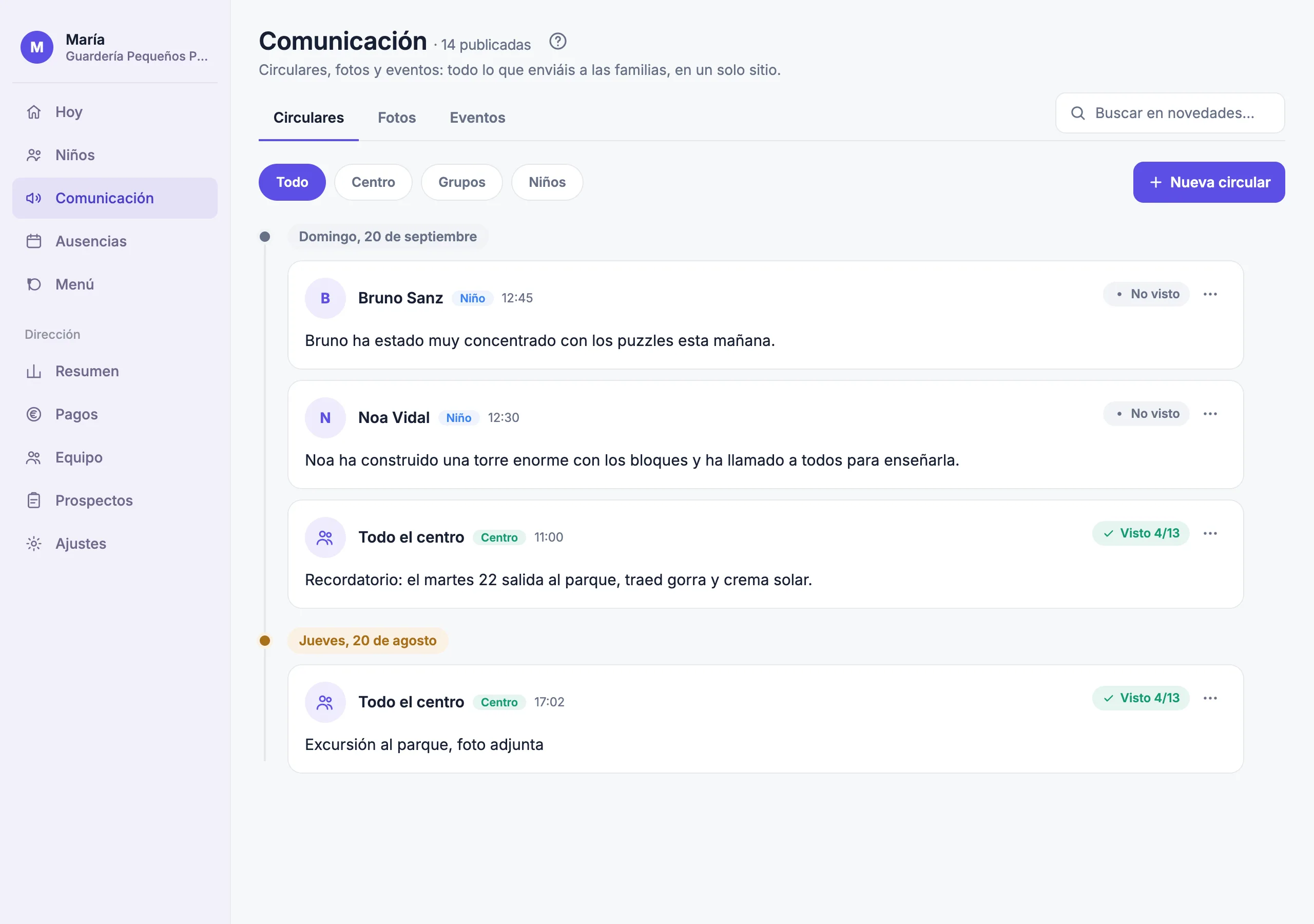
For anything about a single child there is the conversation inside their record: one thread per child, not one per teacher, so the family doesn't have to remember whom they wrote to. When a family writes, you see it at the top of Today and as a number on Children, until someone opens the conversation.
4 · What a family sees
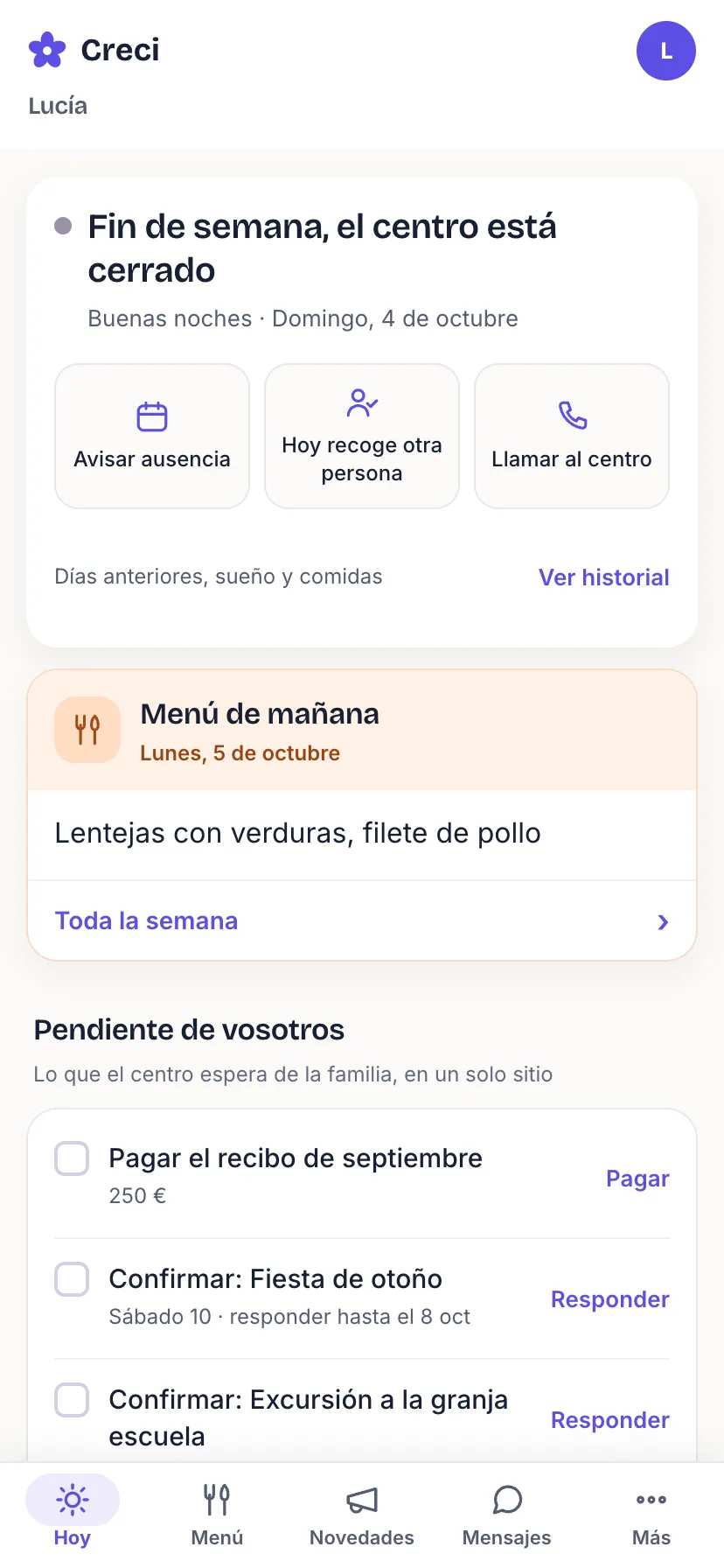
The family signs in from the Creci app (Android or iPhone) or the browser, with their email and a code, and see their child's day, with the photos the room has posted today on the same card; on a day with none yet, the latest ones show there with their date and a way into the gallery, which downloads whole as a ZIP with «Download all». When the child is starting, the settling-in period shows there too: each day's hours and what to bring. From there they report an absence, reply to an event, pick a time for a parent meeting, answer the nursery's anonymous survey, sign permissions, check the menu and download their receipts and the annual certificate.
Of the past they see what is theirs: every receipt and message, the day-by-day diary going back, the calendar from September and each school year's report. The group's and the whole nursery's news and photos, though, only from a month before the child's start date — enough to read the welcome note: a new family doesn't see other children's photos from earlier years.
Whoever has the email on the record can sign in: if you change it, or remove a guardian from the contacts, the old address stops working at once. And if you suspect someone is still signed in who shouldn't be (a lost phone), renew the access: their session is closed on every device and the family signs in again with a code.
5 · Getting paid
Payments shows what each family owes for the month, its status and its receipt. From there you generate the PDF receipt, mark what has been collected and, if you collect by direct debit, prepare the SEPA file for the bank. Everything that shows an amount — the row, the totals, the receipt, the family portal, the reminder, the remittance and the certificate — comes from the same calculation, so they never disagree.
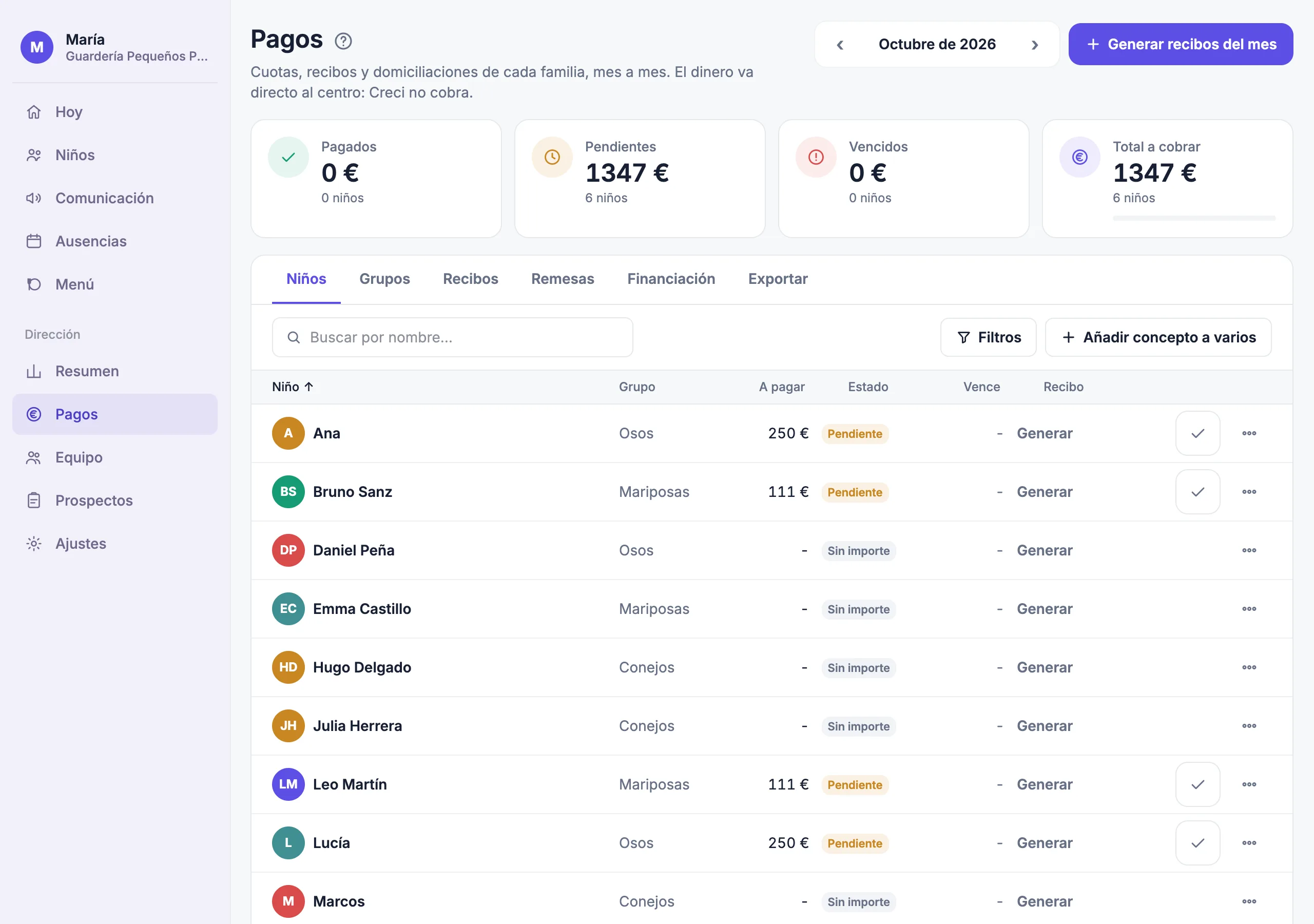
The month screen
- The month is changed with the arrows at the top. Everything on the page, including the child's record if you open it from here, follows that month.
- Four totals: Paid, Pending, Overdue and Total to collect, in euros and in number of children. Tapping Paid, Pending or Overdue filters the list by that status; tapping it again removes the filter.
- Six views: Children (the list, with search and «Filters» by status and group); Groups (collected and pending per group); Receipts (who has the PDF and what step it is at); Direct debits (SEPA files already generated, their collection and their returns); Third parties (grants and companies that pay part, and whether their money has arrived); Export (the month's CSV and the SEPA remittance).
- Each row: child, group (hidden if you are already filtering by a group), To pay, status, due date and receipt. If there are extra hours that month, how much they add up to appears under the amount, for example «incl. 2 h 15 · 22,50 €».
- Statuses: Pending — not yet collected; Overdue — uncollected and past its due date (it also shows in Today's «Needs your attention» and in Summary); Paid · 3 Oct — collected, with the payment date (ticking ✓ puts today's; if the money arrived on another day, «Change date» in the message that appears or «⋯ → Payment date»: that is the date the certificate and modelo 233 go by); In file · 15 Oct — it is in a SEPA file the bank will collect that day (it doesn't count as overdue); Returned — the bank returned the debit and the month is pending again; Covered — a grant or a company pays the whole month and the family owes nothing; No amount — there is nothing to charge that month (no fee, hours or items), so it doesn't count as pending or get a ✓ until you give it an amount from «⋯».
- Icons: ✓ marks the month as paid (only shown while it is pending); the eye next to the PDF means the family has opened the receipt; «⋯» holds the occasional actions: remind the family, change the amount, adjust the hours, set the schedule, update the receipt, open the child's account and, on a paid month, change the payment date or undo the payment. What a paid month charged no longer changes: to correct its amount or its hours, undo the payment first.
- Due date: set on the child's record (Edit → Due date). Without a date, a payment never becomes overdue.
How «To pay» is worked out
- The month's fee. The one you set in Payments for that month («⋯ → Edit amount»), and it only changes that month: the fee for the following months is changed on the child's record (Edit → Amount €). If the month doesn't have a fee yet, the one on the record is used; when you mark it paid or generate its receipt, that fee is recorded on the month.
- Plus the extra hours. Every day the actual check-out time is compared with the contracted check-out time and rounded up to quarter hours (leaving 4 minutes late counts as 15). The month's hours are multiplied by the hourly price in Settings → Billing families. Only late check-outs count, not early arrivals, and a child with no contracted schedule doesn't build up hours. Once the month is marked paid, what its hours came to is stored: changing the hourly price or the schedule later doesn't touch months already paid.
- Manual adjustments. In the child's account («See days and adjust») you can set another amount for those hours or untick «Include this amount on the receipt»; the row then says «2 h 15 not charged» and the total goes down.
Items: meals, enrolment, materials…
Whatever you charge on top of the fee and the hours goes in as an item, with its type. The type matters: the childcare tax deduction and the modelo 233 count «pre-registration, enrolment, attendance in general and extended hours, and meals» (art. 81.2 of the Spanish Income Tax Act, Ley del IRPF), and nothing else.
- Types that count: enrolment / pre-registration, meals / canteen and extended hours (for example, early morning care). Don't count: classroom materials, sale of goods, activities and outings, and other. The family pays them all the same; the difference is only in the certificate and the 233.
- Sale of goods (diapers, uniform, books): use this type when the centre sells something to the family. Childcare is VAT-exempt, but the sale of goods is not (art. 20.Uno.9º.d of Ley 37/1992): for that sale the centre charges VAT and issues its own invoice. Creci's receipt is not an invoice and says so on that line («Sale subject to VAT») and in the footer. Material used in class and included in the service goes in as «Classroom materials».
- For one child: in their account, «+ Add item». It can be for that month only (an outing) or «every month from» (meals).
- For several: in Payments, next to «Filters», «Add item to several»: for everyone, for a group or picking children. Children whose month is already paid are skipped, and Creci tells you which.
- Recurring items have in «⋯»: don't charge it this month, change the amount from this month (earlier months keep their price) and stop charging it from this month.
- A paid month is locked: you can't add, remove or change an item on it. If you need to, unmark the payment first.
- On the receipt each item is a line with its type, and those that aren't childcare carry «Not a childcare expense» (sales, «Sale subject to VAT»). If an item changes after the receipt was generated, the receipt shows as out of date, just like with the fee.
- If the fee already includes meals, that's fine: meals count too. What is worth separating is what doesn't count (materials, outings), so you don't declare too much.
The receipt, step by step
- First, the amount. Until the month is paid, the family doesn't get the receipt, only what they have to pay: «Send amount» on the row (or «Send amounts (n)» at the top, for every family still missing it) sends them the month, the amount and the payment date in the app and by email, and in their portal they see it with the centre's account and «The paid receipt will appear here once the centre records the payment». Further reminders go from «⋯ → Remind the family». That way the receipt says what was really paid, also when the hours outside the schedule are settled separately (in cash, for instance); those hours are still counted in the child's account.
- Paid → Draft. With the month marked as paid, «Generate» (on the row, in «Generate this month's receipts» or in the child's account) creates the PDF as a draft: only the centre sees it, and it can be opened, checked or deleted. If the child has no fee anywhere, Creci asks first.
- Draft → Sent. «Send» publishes it in the family's portal with a «Payment received» notification; from the child's account it can also go by email. «Send receipts (n)» sends all of the month's at once. A sent receipt can no longer be deleted.
- With direct debit the receipt does go before the charge: it is the advance notice the bank requires (amount and charge date), so it is generated and sent as before.
- Seen. When the family opens the PDF, the eye appears on the row and «seen» with the date in their account.
- Out of date. The PDF keeps the figures from when it was generated. If the fee, the hours, their amount or the payment status change afterwards, the receipt is flagged and you can see what changed («Fee: 275 € → 300 €»). «Update» redoes it with the same number; if it had already been sent, Creci asks for confirmation and it goes back to draft until you send it again. Marking a month as paid also makes it out of date, because the PDF changes from «Total to pay» to «Total paid».
Each child's account
Tapping a child's name opens their record on the Account tab, with three blocks:
- Schedule, hours and direct debit: the contracted schedule (or «Set schedule» if it's missing), the month's extra hours with their days and the adjustment, and the direct-debit details for the remittance.
- The month's receipt: what step it's at and a single button for what it still needs (Send the amount to the family while it's unpaid; then Generate, Send to family or Update). The rest — deleting the draft, resending by email — is under «⋯».
- History: one line per earlier month with amount, status and PDF. From «⋯» you can mark an old month as paid or pending, send or delete its draft, resend it by email or open that month in Payments. If earlier months with an amount are still unpaid, a notice at the top says how many and how much they add up to.
When someone else pays part: public grants and cheque guardería
If part of the fee is paid by someone else — a regional grant or a town-hall voucher paid to the centre, or the childcare voucher (cheque guardería) from a parent's employer — you enter it once and Creci asks the family only for the rest.
- Where: in the child's account, «+ Someone else pays part (aid, employer…)»: who pays, what type and how much per month, from the month you have open. In that line's «⋯»: change the amount from this month or stop the funding (earlier months don't change). You can't change a month the family has already paid, or one the funder has already paid.
- For several at once: in Payments → Third parties, «Assign to several children»: the same funder and amount for everyone, for a group or picking children, from the month on screen. Those that already have that month paid or already had that funder are skipped, and Creci tells you which.
- Three types: Public aid paid to the centre; Employer (childcare voucher); Other. The type decides how it counts in the modelo 233 (below), so choose it carefully.
- What each one sees: the receipt shows the month's total, what each payer covers and «To be paid by the family». The Payments row, the reminder, the family portal and the SEPA remittance use only the family's share. A funder never pays more than the month: if their amount is higher, it stops at what is left.
- When their money arrives: in Payments → Third parties, each funder with their children for the month; tick the ones that have arrived, with the date the money came in, and «Mark received». That date is the one that counts in the certificate and in the modelo 233 (a December grant that arrives in March counts in March's year).
SEPA remittance (direct debit)
- Once, for the centre: in Settings → Billing families, the centre's IBAN and SEPA creditor identifier (your bank gives it to you when you sign up for direct debits; it is not the NIF). Creci checks it has the form ES + 2 check digits + suffix + NIF (16 characters, e.g. ES97000B12345678) and that the check digits add up; if not, it isn't saved.
- For each child: in their Account → Direct debit, the IBAN and holder of the paying account, the mandate reference and the date the family signed it. If a child shows «Missing: …» in the remittance, tapping it takes you straight to that form. The mandate reference takes up to 35 characters: letters without accents or ñ, digits, spaces and / - ? : ( ) . , ' + (no «_»). Creci doesn't change it for you: if it has any other character it isn't saved and you're told which one; a child with an older reference like that stays out of the remittance until it's fixed.
- What goes in: the month's children with pending status, an amount above zero and complete direct-debit details, that aren't already in another remittance. Each debit is exactly the month's «To pay» — the family's share, without what grants or companies pay — extra hours included, and the description is the receipt number (if any), the child's name and the month.
- First and later debits: the first debit of each mandate goes as FRST and the later ones as RCUR; Creci handles this itself. If a family was already paying by direct debit before you used Creci, tick «Already collected by direct debit before».
- Advance notice to the family: SEPA rules require telling the family the amount and date of the debit before collecting it — 14 days before, unless you agreed another period with families in the contract or the mandate. That period is changed in Settings → Billing families → Direct debit notice. The month's receipt is that notice: for a family on direct debit it carries the creditor identifier, the «Debit date» (the month's due date) and the sentence «This receipt is the advance notice of the debit». It only carries them if the month has a due date that hasn't passed when the receipt is generated: without a «Debit date», the receipt doesn't count as notice. Because the amount changes every month (hours, items), one notice a year isn't enough.
- Collection date: it can't be earlier than today; by default it suggests the debit date the receipts announced (if they all give the same one and it hasn't passed), otherwise today plus the notice days. When you pick it, Creci flags each family without enough notice: receipt not sent or not opened, sent fewer days ago than agreed, with another amount, with no debit date, or with a debit date other than the one chosen. To generate the file anyway you have to confirm those families have already been notified another way. Your bank also needs the file a few days before the collection date.
- After the file, in Payments → Direct debits: each remittance is saved and the same XML can be downloaded again. Its months show as «In file» and don't go into another one. When you see the money in the bank, «Mark collected» with the date it arrived — not before the file's collection date, so until that day the button doesn't show: the debits that weren't returned become paid on that date, by direct debit.
- Returns: if the bank returns a debit, open «See debits» for that remittance, «Return», with the date and reason from the bank's notice (insufficient funds, return requested by the holder…). That month is pending again — a return doesn't cancel the debt — and can go in the next remittance. «Undo» fixes a return entered by mistake.
- Refund period: with a signed mandate, the family can ask their bank to refund a debit for 8 weeks from the collection date, without giving a reason; each remittance shows until what day. Without a valid mandate, the period is 13 months (Real Decreto-ley 19/2018 on payment services).
- Cancel: a remittance you never sent to the bank, or that the bank rejected entirely, can be cancelled as long as it has no collections or returns; its months become available again. Check the first file with your bank before relying on the process.
- Payment method: in the child's account, a paid month shows «Payment method» (direct debit, transfer, cash, card, Bizum or other). The remittance sets it automatically; the rest is optional.
Annual certificate and modelo 233
Families with children under three can apply the increase of the maternity deduction (up to 1,000 € a year) for childcare costs, and the authorised centre files the modelo 233 in January with what each family paid. Creci prepares both with the same criteria.
- What counts: the childcare costs the regulation defines — «pre-registration, enrolment, attendance in general and extended hours, and meals» (Orden HAC/1400/2018 and art. 81 of the Ley del IRPF). So the fee, the extra hours charged (they are extended hours) and the enrolment, meals and extended-hours items are added up; materials, activities and «other» are not.
- By payment date, not by month: what was paid between 1 January and 31 December is added up, even if the monthly fee belonged to another year (December's paid in January counts in the following year). Only months marked as paid and with an amount count. A paid month with no payment date counts in no year: the certificate leaves it out and modelo 233 won't let you download the file until you add it («⋯ → Payment date»).
- Each month's amount: that month's fee (or the one on its receipt, if the month has none) plus its extra hours: the manually adjusted amount if you set one, otherwise the one on that month's receipt and, if there's no receipt, the one calculated from the check-outs. Hours you removed from the receipt don't count. Plus that month's items of the types that count.
- What others pay: a grant's or a company's share counts in the year it reached the centre (the «Mark received» date), and the family's in the year they paid. What others pay is taken to cover childcare first (fee, enrolment, meals, extended hours).
- Certificate: one PDF per child and year, with each month, its payment date and the total. If someone else paid part, each line says who paid it (the family or the funder, with its type) and the highlighted figure is what the family paid, which is what they can deduct (what is paid with a tax-exempt cheque guardería or a grant isn't deductible, art. 81.2 of the Ley del IRPF). The centre downloads it from the child in the modelo 233, and the family from their portal, by year of payment, for every year they paid. Without the centre's NIF in the tax details it isn't issued: without it the certificate is no good for childcare vouchers or the deduction, and the family's portal tells them to ask you for it.
- Age: like the modelo 233, the certificate counts up to August of the year the child turns three; what is paid for September onwards (when they can start the second cycle) is shown separately and doesn't add up.
- Centre without authorisation: if in the modelo 233 you marked that the centre has no authorisation at all, the certificate doesn't refer to the maternity deduction, which only covers authorised centres. Mind VAT too: the childcare exemption only applies to authorised entities (art. 20.Uno.9º of Ley 37/1992).
Filing the modelo 233 yourselves
In Summary → Modelo 233 Creci prepares the official file you upload at the Tax Agency's online office (Agencia Tributaria, AEAT template format for the 2025 tax year onwards) and checks every field before letting you download it. In December and January it also shows in «Needs your attention», until you mark it as filed.
- 1. Your centre. What authorisation it has: from the education authority (with its number and who issued it) or another opening and operating licence as a nursery, also with who issued it (for a town-hall licence, «19 · Entidad Local»). Only authorised centres file the 233; if you have neither, mark it and Creci stops reminding you. The centre's NIF also goes here, and it is checked against its control digit.
- 2. Each child. Children under three enrolled during the year are listed; one who turns three, up to August, and those who turned three before the year are left out. Open each one: name and surnames exactly as on the DNI (the ones on the record are suggested), full date of birth, the child's NIF if they have one, the mother or the person with sole custody and, if there is one, the other parent, with their NIF or NIE. They are chosen from the child's contacts; if someone isn't there, they are created without permission to pick the child up. If a name has a character the file doesn't accept, the warning says which one; for the Valencian/Catalan «l·l», write a normal full stop («Marcel·la» → «Marcel.la»).
- Full months. Worked out from the start and leaving dates: a month counts if the child was enrolled from its first to its last day, even if it isn't a school month. If a month wasn't contracted (August, for example), untick it; «Back to the calculated ones» undoes the change.
- Amounts. «Annual childcare costs paid» comes from Payments, with the criteria above (fee, hours and the items that count), and isn't edited here. «Subsidised amount» only includes public grants paid directly to the centre for that child; what the parents' employer pays (cheque guardería) goes into the costs and never in this box. Creci fills it in from the «public grant» funders received in the year; if you type another figure, yours wins, and leaving it empty goes back to the calculation.
- 3. File it. With everything «Ready», «Download file for the AEAT» gives you modelo233-YYYY.csv. At the online office (modelo 233 → Presentación), with the centre's digital certificate or Cl@ve: fill in the filer and contact, pick the file in «Examinar / Seleccionar archivo», «Presentar» and «Firmar y enviar». Note the receipt's secure verification code (código seguro de verificación) in Creci.
- Deadline: the month of January, for what was paid the year before; if the 31st falls on a weekend, until the next working day. Filing late is fined 20 € per person declared, with a minimum of 300 € (art. 198 of the Ley General Tributaria; half if you file late but before the Tax Agency asks for it).
- If something needs correcting: each child always keeps the same identifier, so download the file again and upload it in «Consulta y modificación → Modificación masiva».
- Change of custody during the year: the AEAT asks for one record per person who had custody, each with only their months. On the child, tick «Custody changed during…», the month from which the other person has it and who they are: the file then carries two records, with the months and what was paid (by payment date) split between them. If custody passes to the other parent, in their record the first person appears as the other parent.
- What Creci doesn't do: it doesn't file for you or decide whether the centre is authorised.
Creci doesn't collect money on your behalf or touch it: it prepares the documents and files, your bank does the collecting and you file the modelo 233 yourselves at the Tax Agency's online office. Sources: Orden HAC/1400/2018 (amended by Orden HAC/682/2025) and the AEAT's modelo 233 FAQ.
6 · Paperwork and inspections
What an inspection asks for is rarely missing: it has expired. In Team → Documents and expiry dates you record the date of each document — sex-offence clearance certificate, first aid, food handler, the centre's insurance, inspections, a child's vaccinations — and Creci alerts you 60, 30 and 7 days before, and again on the day it expires.
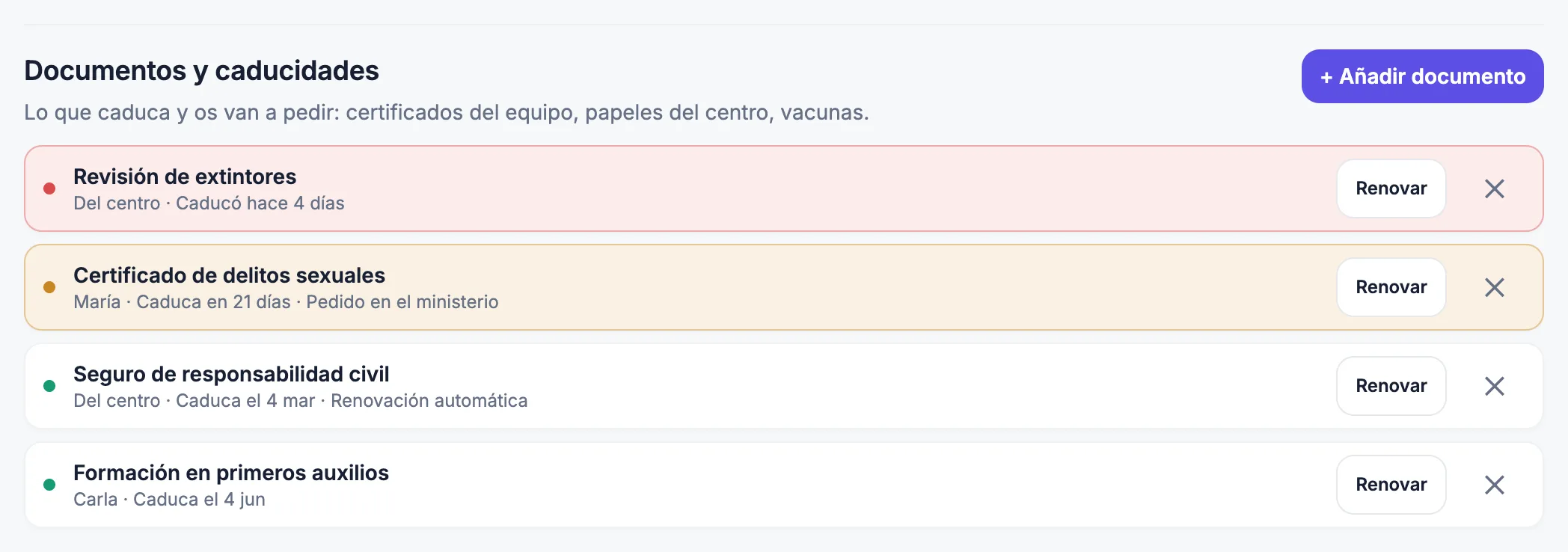
- Permissions: photos, outings, giving medication… The family accepts or declines from their portal and their answer is kept with the date and which guardian gave it, which is what you are really asked to show. Each guardian answers from their own login: if one accepts and the other doesn't, it counts as «don't accept» until they agree, and Settings shows who said what. A family can withdraw consent whenever they want — the law requires it — so when they change it you are notified and the change is kept: who changed it, from what to what and on which day. For a single activity, such as an outing, set a date in «Ask until»: after that day families are no longer asked, and you still see who answered what. With no date the consent is standing. If the activity is for one group only, pick it under «For»: only those families see it, and «not answered» counts only that group's children.
- Medication: authorisation and a log of every dose, with who gave it and at what time.
- Incidents: what happened, on which part of the body, what was done and whether the family was told.
- Working-hours record: if the team clocks in, Team → Working-hours record shows each person's clock-ins and clock-outs month by month, with the total hours: it is the daily record that article 34.9 of the Spanish Workers' Statute requires you to keep for four years, and Creci keeps it that long even after the person leaves. A forgotten clock-out is marked «no clock-out»; tap it to correct it, always with a reason, and who changed it, when and why shows under that day (a wrong entry is voided, not deleted). Someone who has left the team can be corrected too. «PDF to sign» gives one sheet per person with their days, hours, corrections and room for the signatures; «CSV» puts it all in one table for your accountant. Everyone sees their own, with the reason for each correction, in «My record» next to their clock-in button, or in their account menu («My working-hours record»), even if the nursery stops clocking in.
- Weekly rota: in Team → Weekly rota you set who works each day and from when to when (one tap on the cell), or «Copy last week». Below, day by day, whether those shifts meet the ratio: every quarter of an hour Creci counts the children you expect —with their contracted hours or their settling-in hours, minus notified absences and closed days— and tells you, for example, «16:00–17:15: 1 of 2 educators needed» or «Babies with 9 children (maximum 8)». The evening before, from 17:00, management gets a notification if someone is missing the next day. Children without contracted hours count all day, and you are told how many.
7 · Filling places
Each interested family is a card in Prospects, dragged from column to column as it moves forward. Requests that come in through your public page or the form on your website land here on their own, and notify you straight away.
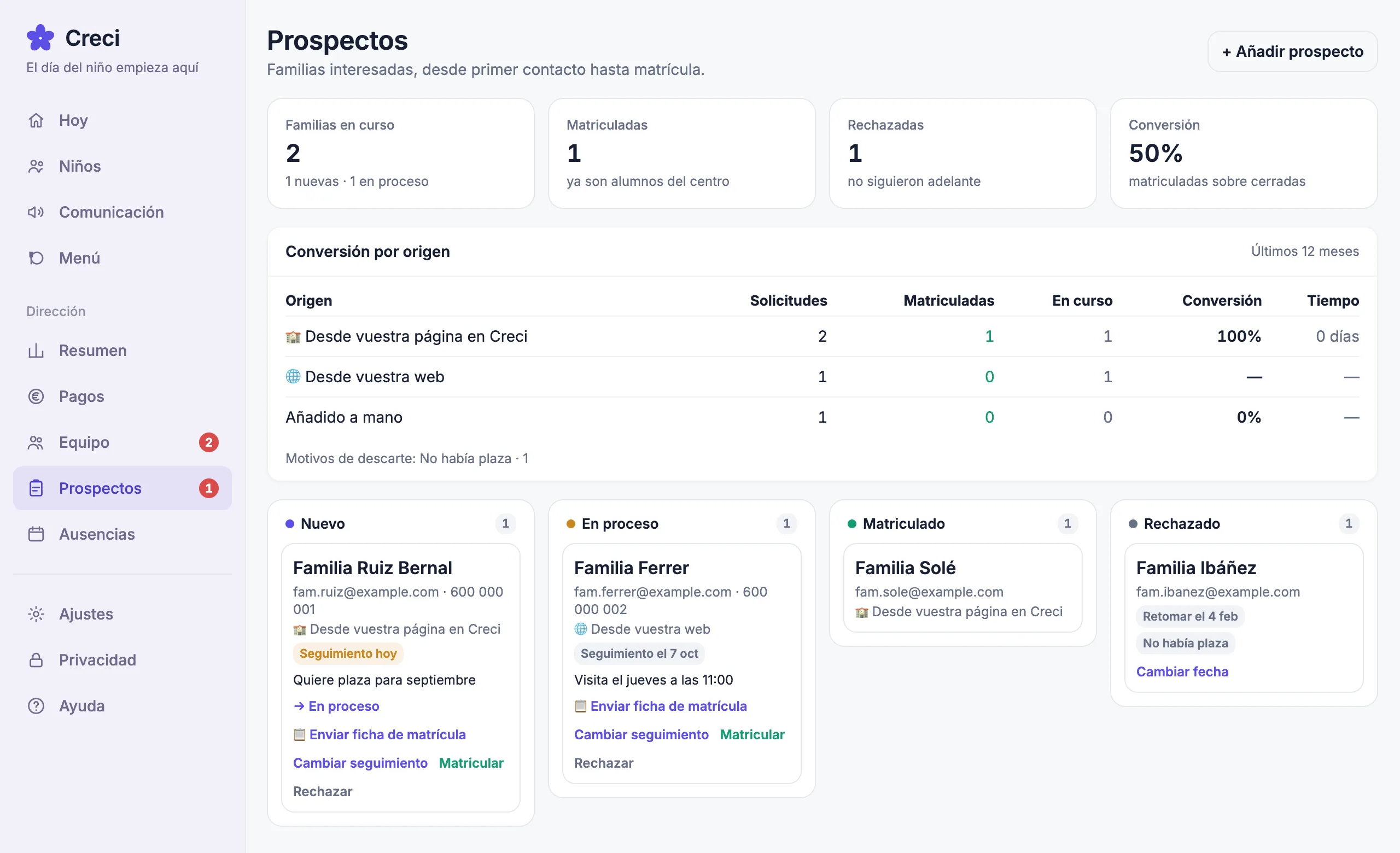
- Next step: give it a date («I'll call her on Monday») and Creci reminds you that day. A family without a next step goes cold on its own.
- When declining you record the reason and, if the baby is still small, a date to pick it up again — suggested from the birth month the family gave.
- Enrolment form: you send a link and the family fills in the child's details; when you enrol them, the record is already written.
- Public page: in Settings you can publish a page for the centre with photos, opening hours and a request form, for centres without a website. The first photo appears large next to the name and the rest in the gallery, which opens full screen. In What we offer tick what you really have (own kitchen, playground, English, bono infantil…) and in Indicative price enter the lowest monthly fee, shown as "From X €/month". The WhatsApp button uses the centre's phone and only appears if it's a mobile. In Instagram type your username (@escuelasol) or paste the link to your profile, and it shows as one more button next to WhatsApp and Call; a link to a post or to another website won't do. In Page colour you choose one of six colours for the buttons and labels: all of them are picked so white text stays easy to read on them, and with none chosen the page keeps Creci's violet. With an address, the page shows a map the family loads with a tap. Download QR gives you a code to print on a poster or the door: publish the page first, or whoever scans it will see nothing.
- Places for next year: at the top of Prospects, «Places 2027–28». Rooms in Spain go by year of birth, so Creci already knows how many of your children stay in each room in September and who leaves for school. Enter how many places you offer per room (the legal maximum shows as a hint) and you'll see how many are left free and how many interested families, with a date of birth, ask for each one. Children without a date of birth are listed apart, since they can't be counted.
How «Conversion by source» is worked out
Enquiries, conversion and time
It counts the interested families that came in over the last 12 months, grouped by where they came from (added by hand, your website's form, your Creci page or PideGuardería).
- Enquiries: all of them from that source.
- Enrolled: those that reached the Enrolled column. Open: those still in New or In progress.
- Conversion: enrolled ÷ (enrolled + rejected). Only closed ones count: the ones still open aren't treated as lost, otherwise recent months would always look bad.
- Time: the median number of days from the enquiry coming in to being marked enrolled (half took less and half took more; one unusual case doesn't skew it the way it would skew an average).
- Reasons for closing: how many rejected ones there are with each reason.
8 · The management summary
Summary is the management screen: occupancy by group, ratio, the month's income and how enrolment is going. What needs your attention — overdue payments, absences to approve, expiring documents and families waiting for an answer — is at the very top of Today, the screen you open every morning, together with messages from families: one list instead of four screens.
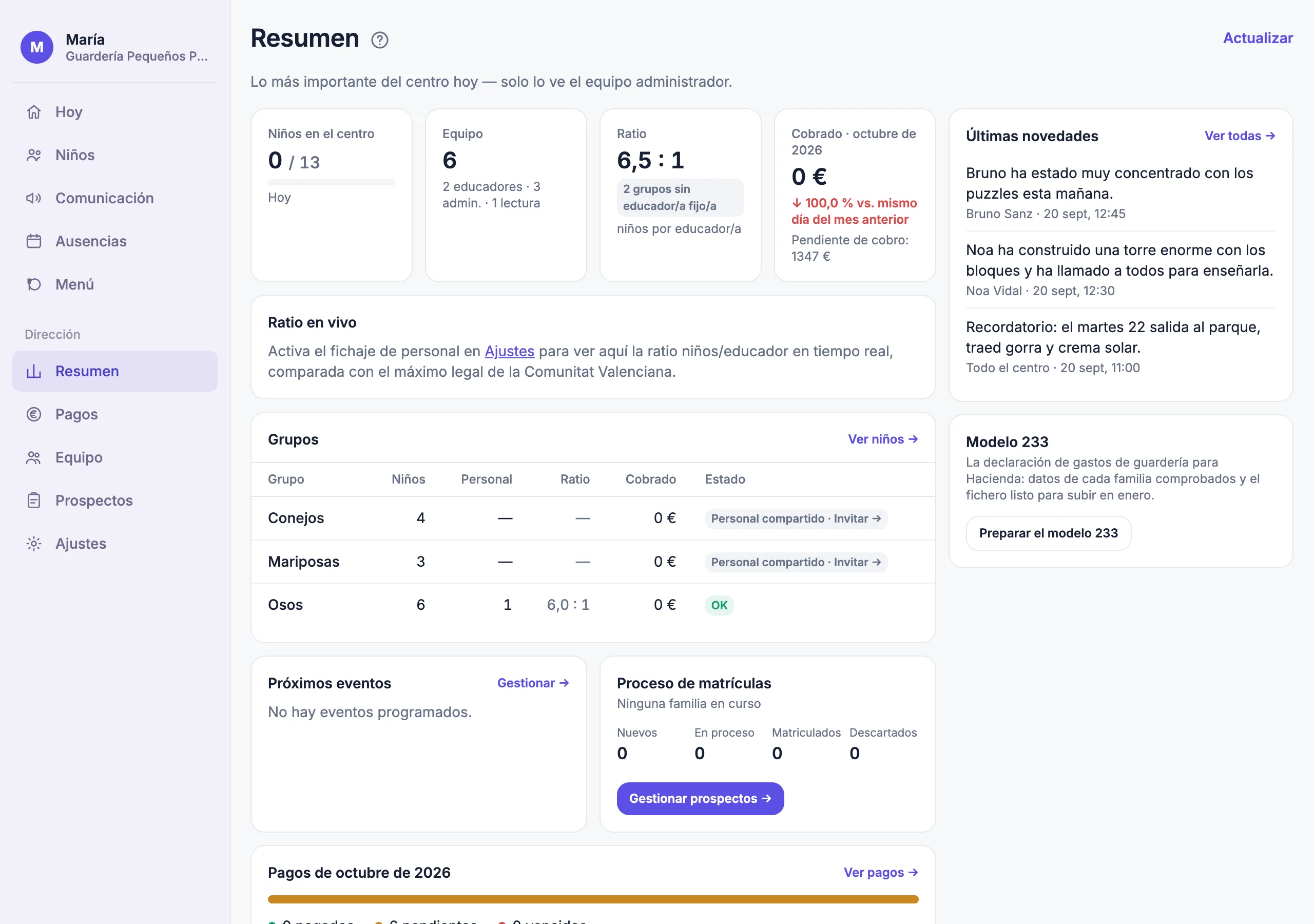
At the bottom of Summary is the Satisfaction survey: once or twice a year you ask families, anonymously, how it's going —communication, daily information, how the educators treat them, the child's wellbeing, facilities and food, from 1 to 5—, whether they would recommend the nursery (0 to 10) and what they would improve. They get a notification and answer from their portal. While it is open you only see how many have answered, with «Remind those who haven't answered»; results show once it closes and only with 3 answers or more, so nobody can tell what any one family said.
In the right-hand column is Modelo 233: the childcare costs file the authorised centre submits to the Tax Agency in January. Creci checks each family's details, tells you what is missing and won't let you download the file until it is complete; how to fill it in and file it is under Getting paid → Filing the modelo 233 yourselves.
Only administrators see it, just like Payments and Prospects. A teacher sees their group and the day to day, nothing else.
How each figure is worked out
Open a figure to see where it comes from. The figures are worked out when you open Summary or tap «Refresh», with the data at that moment.
Children at the nursery
First number: children checked in today and not yet checked out. Second: every enrolled (active) child, whether or not they came today. The bar is that proportion.
- «n already left»: children checked in and out today.
- «occupied/total places»: active children over the total capacity in Settings → Billing / contract details → Total capacity. If you haven't set it, it isn't shown.
A child with a reported absence isn't in the first number (no check-in) but is in the second.
Team
Everyone added in Team, split by role: teachers, administrators and read-only. It doesn't depend on who came in today; that is what «Live ratio» is for.
Ratio (card at the top)
Active children ÷ people with the teacher role. Administrators and read-only don't count. It is the ratio «on paper»: every enrolled child and the whole teaching team, whether they came in today or not. It isn't the legal ratio; that one is per room and is shown in «Live ratio».
Below it, a warning if a group has nobody assigned: «no teacher of their own» when teachers on «All groups» cover it, and «no staff» when there are none.
Collected and still to collect
Collected · month: the sum of «To pay» for this month's fees marked as paid. «To pay» is the family's share (fee + extra hours + items − what grants or employers pay), the same amount as in Payments. It goes by the month of the fee, not the day it was paid: October's fee paid on 2 November counts in October. (The annual certificate and the modelo 233 do the opposite: they go by payment date.)
Arrow ↑/↓: compares with what had been collected last month by the same day. If today is the 15th, with what had been collected by the 15th of last month (the 31st is compared with the last day if last month was shorter). A month marked paid with no payment date counts as paid on time.
If nothing has been marked as paid this month yet, instead of «↓ 100 %» it shows «Last month by this day: …».
Still to collect: the sum of «To pay» for this month's unpaid fees that have an amount. It includes those in a SEPA file the bank hasn't collected yet. «No amount» months and months «Covered» by a grant don't add up.
From funders: what public grants or employers (cheque guardería) pay isn't in «Collected», which is only the families' share: it shows underneath on its own line — «From funders: X collected · Y pending» —, with what has already arrived from them this month and what is still due. The weekly email adds it the same way: «(plus X from third parties)».
Live ratio (Decreto 2/2009)
It works with Staff clock-in turned on in Settings; without it, the card only invites you to turn it on. Room by room, it compares the children inside right now with the maximum in article 5 of the Comunitat Valenciana's Decreto 2/2009. That maximum is per room, not per teacher.
- Children: those in the group checked in today and not checked out.
- Age band and maximum: each child's age today, from their date of birth: under 1, maximum 8; 1 to 2, 13; 2 to 3, 20. If the room has children from several bands, the mixed-room maximum applies: under-1s with 1-to-2s, 8; 1-to-2s with 2-to-3s, 15; under-1s with 2-to-3s (with or without 1-to-2s), 11. If only the birth month is known, the 1st is used, which never makes a child younger than they are.
- «Age not recorded»: there are children in the room with no date of birth, so their maximum can't be known.
- Room staff: people with that group assigned who have clocked in and not out. Read-only doesn't count. People on «All groups» count for the centre, not for a particular room.
- Staff on site: present / required. Present: everyone clocked in right now (except read-only). Required: one person for each room with children inside right now and, if there are 3 rooms or more, one more (articles 12.1 and 14.1).
Management's phone gets a notification when a room goes over its maximum and when the staff clocked in fall short of what is required; at most once a day per room and once a day for staffing. It is checked every time a child checks in or someone on the team clocks out.
Groups table
- Children: active children in the group; those with no group are on a «No group» row.
- Staff: team members with that group assigned, not counting read-only accounts. Those on «All groups» aren't added to any row.
- Ratio: children in the group ÷ staff in the group. With nobody assigned, «—».
- Collected: like the «Collected» card, but only for that group's children.
- Status: «OK» if someone is assigned; «Shared staff» if not, but there are teachers on «All groups»; «No staff» if there aren't either; «Assign group» on the row of children with no group.
On a phone the Staff and Ratio columns are hidden so the table fits; on a tablet or computer every column shows.
Payments for the month
The bar splits this month's fees by number of children:
- Paid: marked as paid.
- Pending: unpaid, with an amount, not yet due (or with no due date).
- Overdue: unpaid, with an amount and past their due date. Those in a SEPA file already sent don't count as overdue.
«No amount» months aren't in the bar. Each segment opens Payments already filtered by that status.
Enrolment pipeline, events, updates and unenrolled
- Enrolment pipeline: how many interested families are in each Prospects column, with no date limit. «Families in progress» = New + In progress.
- Upcoming events: the next 4 from today; if you asked for RSVPs, how many families are coming and how many aren't.
- Latest updates: the last 3 posts in Communication.
- Unenrolled: the 20 most recently unenrolled children, so you can reactivate them if they come back. Those whose data is already blocked under the retention period aren't shown.
Questions we often get
- «I posted photos and can't find them.»
- They are in Communication → Photos. That tab brings together circulars, photos and events: everything used to land on the same wall and each kind was hard to find.
- «Where do I create events?»
- In Communication → Events. They used to be inside Settings, which was the wrong place; the calendar in Settings still shows them next to the closing days.
- «How do I charge for meals, enrolment or an outing?»
- As an item: in the child's Account («+ Add item») or, for several, in Payments with «Add item to several». Choose the type carefully: enrolment, meals and extended hours count for the childcare deduction; materials and outings don't.
- «Do I need an accountant for the modelo 233?»
- You don't have to: Creci prepares the official file and checks it, and you upload it at the Tax Agency's online office with the centre's certificate or Cl@ve. What Creci doesn't decide for you is whether the centre is authorised; you state that in Summary → Modelo 233.
- «Can a teacher see payments?»
- No. Payments, Prospects, Summary and the team's documents are for administrators only. A teacher sees their group, the daily report, communication with their families, today's menu and the events with who is going (without being able to create, edit or delete them).
- «How do I change my password?»
- Under your initial → Change password. A link arrives at your account's email to choose a new one; saving it signs you out on your other devices.
- “How do I delete my account?”
- Under your initial → Delete my account. Your access, sessions and notifications are removed; what you published stays in the school's records. If you are the only administrator, the account is the school's: the whole school is deleted, after you type its name. Families find it in More → Settings → Your account.
- «A family says they can't get in.»
- Check that the email on the record is theirs and resend the invitation: they have to sign in with that same email and the code they receive. A portal link saved from before is no longer enough without signing in. On the record, Family access lists everyone with access — the family email and each guardian with their own email — with whether they have signed in, from the app or a browser, and whether notifications are on. The invitation goes to all of them; from a person's row you can resend it to just them. To give a second guardian access with their own email, edit Family and contacts and type it on their row (type «Guardian / mother / father»): if the family had already been invited, they get their own invitation when you save. A teacher whose own child is at the nursery gets into the portal from /entrar with Logging in as a parent? Get a code. Invitations and codes arrive in the language each person uses in the portal. The invitation link opens /entrar with your nursery's name and a button to install the Creci app: Google Play on Android, the App Store on iPhone and iPad, both on a computer. Notifications are per device: with siblings at the nursery, the phone gets them for all of the parent's children, not only the one opened last.
- «How do I take a guardian's portal access away without deleting them?»
- If a court order requires it, or a parent doesn't have parental authority, open Family and contacts in the child's file and untick Can log in to the family portal on that person's row. They stay in the file with their phone number, but from then on they can't log in, get no invitations or notifications, and see nothing about the child. If they are the file's Family email, put the other guardian's address there first: Creci won't take access away from the main email. If they mustn't collect the child either, also add them as an authorised person with Can collect unticked, so the team sees it at the door. In the portal, the list of who can collect no longer shows guardians or their phone numbers, only the other authorised people.
- «Why doesn't the family get a notification for every diaper any more?»
- Because there were eight or ten a day and almost all repeated the one before. Now the family's phone only alerts them straight away about what needs attention — a meal or water at «Little» or «None», or that the child cried or was upset — and for the rest they get a single «The day of…» summary at pick-up. In their portal they see everything, instantly, as always.
- «I don't get notifications on my phone.»
- Until they are turned on for that device, Today offers it at the top («Turn on notifications on this device»); on any screen they are also in your circle with your initial (top right on the phone, at the top of the side menu on the tablet) → Notifications, where you can also turn them off. They work per device: turning them on on the classroom tablet doesn't turn them on on your phone.
- «Who owns the children's data?»
- The centre: you are the data controller and Creci the processor, which only handles it on your instructions. It is explained in the privacy policy.
- «What happens to the data of a child who leaves?»
- One year after they leave (or later, if it is still needed for January's modelo 233 or that year's income tax return), Creci deletes their day-to-day data: photos, reports, messages, health, permissions. Their payments, receipts and tax data aren't deleted then, because the centre has to keep them for 6 years (art. 30 of the Código de Comercio; art. 70 of the Ley General Tributaria): they are blocked, removed from every screen, and can only be downloaded in Settings → Retained records if an authority asks for them. After those 6 years they are deleted for good. Until then the family can still log in with their email to download that child's receipts and annual certificates — only those: the rest of the portal closes when the child leaves —; once the data is blocked, not any more.
Still not clear?
Write to us from Settings → Suggestions telling us what you were trying to do. We read everything, and questions that keep coming up end up on this page or in the «?» button of the screen where they were needed.